Convert
How to convert MOV to MP4 on a Mac
Updated 23 November 2026 · by Vikas Veshishth
To convert MOV to MP4 on a Mac with nothing installed, open Terminal and run avconvert --source in.mov --preset PresetHighestQuality --output out.mp4. The command is part of macOS. QuickTime Player cannot do this: its Export menu only writes MOV files.
How do I convert MOV to MP4 without installing anything?
Use avconvert, which ships with macOS.
- Open Terminal.
- Type
cd, a space, then drag the folder that holds the video into the window and press Return. - Run the command with your own file names:
avconvert --source "Screen Recording.mov" --preset PresetHighestQuality --output "Screen Recording.mp4"The ending of the output name decides the file type, so .mp4 gives an MP4. The original is not changed. For a smaller file, swap the preset for Preset1920x1080 or Preset1280x720.
We ran this on a screen recording and the result was a standard MP4 file.
Why can't QuickTime Player save as MP4?
QuickTime Player's File, then Export As menu offers resolutions from 480p to 4K and an audio-only option. Every video choice writes a .mov file. There is no MP4 setting.
Renaming the file from .mov to .mp4 in Finder sometimes plays, because the two formats are closely related. It is not a conversion, and sites and apps that check the file can still reject it.
Convert with iMovie
iMovie is free from the App Store and exports MP4.
- Open iMovie, create a new movie and drag the MOV file into the timeline.
- Choose File, then Share, then File.
- Set Quality to High. The Best (ProRes) setting writes a MOV, so avoid it.
- Click Next, name the file and click Save.
This re-encodes the video, so it takes a while on long clips. It is the route to take when you also want to trim or join clips.
Convert with ffmpeg, without re-encoding
If you have ffmpeg installed, it can move the video into an MP4 file without touching the picture. The result is identical in quality and takes seconds.
ffmpeg -i in.mov -c copy out.mp4This works when the MOV holds H.264 or HEVC video with AAC audio, which covers iPhone videos and Mac screen recordings. If ffmpeg reports that a codec is not supported in MP4, drop -c copy and it will re-encode instead.
Which method should you pick?
| Situation | Method |
|---|---|
| Nothing installed, one file | avconvert |
| You also want to trim or join | iMovie |
| ffmpeg is installed, quality must not change | ffmpeg -c copy |
| You would rather not use Terminal | MacPix |
Convert videos in MacPix
MacPix lists every video on your Mac under Videos, screen recordings included. Select one, send it to Convert and press MP4.
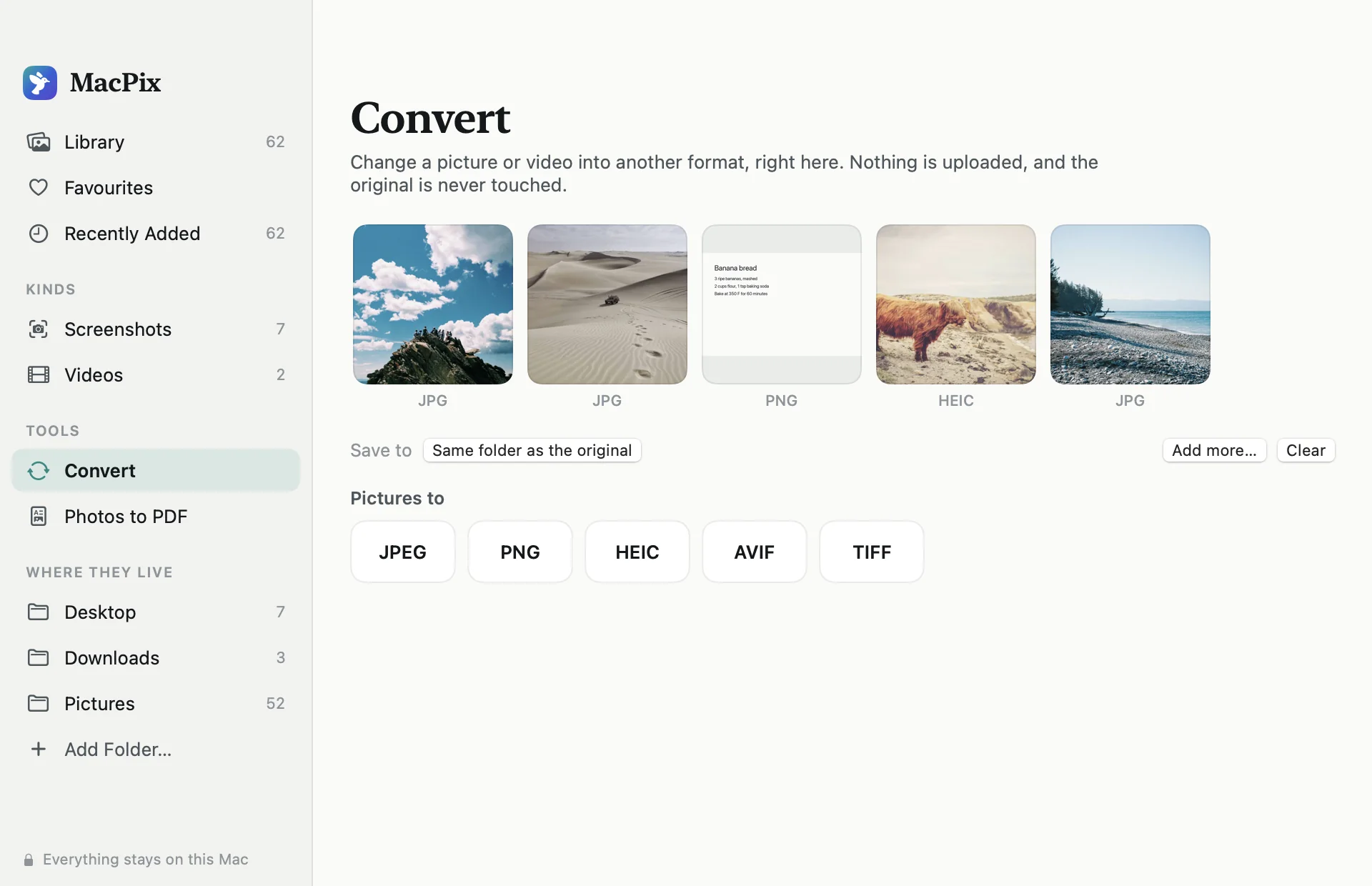
The screenshot shows pictures in the queue. With a video in the queue the buttons are MP4, HEVC, MOV, GIF and M4A audio. The copy is saved beside the original, and the original is kept. MacPix needs macOS 14 or later on an Apple silicon Mac and is not on sale yet.
Questions
Is MP4 lower quality than MOV?
No. Both are containers that can hold the same H.264 or HEVC video. Quality only drops if the video is re-encoded at a lower setting.
Why do Mac screen recordings save as MOV?
MOV is Apple's own container and the default for QuickTime and the screenshot toolbar. macOS has no setting to record straight to MP4.
How do I turn a screen recording into a GIF?
The Shortcuts app has a Make GIF action that accepts a video. ffmpeg can do it too, and so can the GIF button on MacPix's Convert page.
Does converting upload my video?
Not with any of the methods here. avconvert, iMovie, ffmpeg and MacPix all work on the Mac.
Keep reading
How to convert HEIC to JPG on a Mac
Four built-in ways to turn iPhone HEIC photos into JPG, one file or a whole folder.
ScreenshotsWhere do screenshots go on a Mac?
The default folder, how to change it, and how to find a screenshot that went missing.
PDFHow to turn photos into a PDF on a Mac
Combine photos of receipts, notes or pages into one PDF, in the order you want.