How to turn photos into a PDF on a Mac
Updated 23 November 2026 · by Vikas Veshishth
To turn photos into one PDF on a Mac, select the pictures in Finder, Control-click, and choose Quick Actions, then Create PDF. A single PDF with one picture per page appears in the same folder. It is built into macOS and nothing is uploaded.
How do I combine several photos into one PDF?
- Put the pictures in one folder. Rename them
1,2,3if the order matters. - Select them all.
- Control-click one and choose Quick Actions, then Create PDF.
The PDF is saved beside the pictures, named after one of them. Open it and check the page order before you send it.
How do I change the page order?
Use Preview. It lets you drag the pages into place before the PDF is made.
- Select the pictures in Finder, Control-click and choose Open With, then Preview.
- Choose View, then Thumbnails, to show the sidebar.
- Drag the thumbnails into the order you want.
- Press ⌘A in the sidebar to select every page.
- Choose File, then Print.
- In the print window, open the PDF menu at the bottom and choose Save as PDF.
Use Print here. File, then Export as PDF saves only the picture you are looking at.
In the same print window you can set Paper Size to A4 or US Letter and tick Scale to Fit so each photo fills its page.
How do I add a photo to a PDF I already have?
- Open the PDF in Preview and show the sidebar with View, then Thumbnails.
- Drag the image file from Finder into the sidebar, between the pages where it belongs.
- Save with ⌘S.
Dragging a second PDF into the sidebar the same way joins the two documents.
Why can't I search the text in my PDF?
A PDF made from photos holds pictures of the pages and no text of its own. Searching it for a word finds nothing in most apps, and the PDF cannot be found by its contents later.
Preview has no setting that adds the text. You need a tool that reads the words in each photo and stores them in the PDF behind the picture.
Make a searchable PDF with MacPix
MacPix has a Photos to PDF page built for receipts, notes and whiteboards.
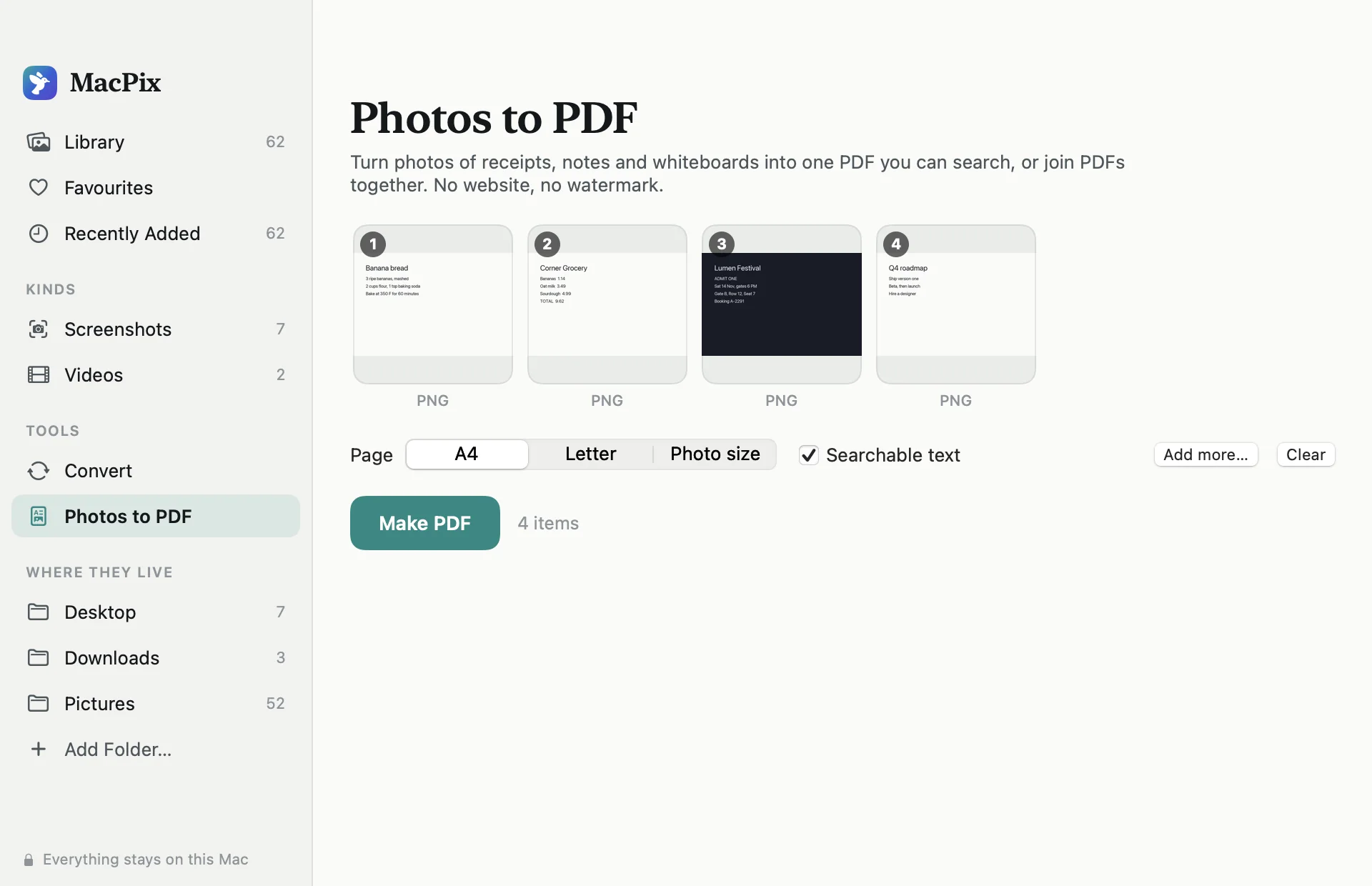
- Numbered pages. Each picture shows its page number, so the order is clear before you make the file.
- Page size. A4, Letter, or a page the size of each photo.
- Searchable text. With the box ticked, MacPix puts the words it read in each photo into the PDF. In our test, a four-page PDF made from screenshots gave back its text when read with the PDF tools built into macOS.
- Join PDFs. Existing PDFs can go in the same queue and come out as one document.
It runs on the Mac. MacPix needs macOS 14 or later on an Apple silicon Mac and is not on sale yet.
Which way should you use?
| You need | Use |
|---|---|
| A quick PDF, order does not matter | Finder Quick Action |
| A set page order or paper size | Preview, then Print, then Save as PDF |
| To add pages to an existing PDF | Drag into Preview's sidebar |
| Text you can search and copy | MacPix |
Questions
Can I make a PDF from HEIC photos?
Yes. The Finder Quick Action and Preview both accept HEIC, JPEG, PNG and TIFF.
How do I make the PDF smaller?
In Preview, choose File, then Export, and set Quartz Filter to Reduce File Size. Check the result, because the filter lowers picture quality a lot.
Does Create PDF upload my photos?
No. The Quick Action and Preview both work on the Mac.
Can I turn iPhone photos into a PDF on the Mac?
Yes. Get them onto the Mac first with AirDrop or iCloud Photos, then follow the same steps.
Keep reading
How to copy text from an image on a Mac
Use Live Text in Preview, Quick Look and Photos to copy the words out of any picture.
ConvertHow to convert HEIC to JPG on a Mac
Four built-in ways to turn iPhone HEIC photos into JPG, one file or a whole folder.
ScreenshotsHow to search screenshots on a Mac
Find an old screenshot by name, by date, or by the words inside the picture.